View Reasons for Comms Not Sent and Error Details
View Reasons Not Sent
The Reasons Not Sent functionality allows you to view the reasons why a comms was not sent. You can access this functionality for a comms with a request status of Not Sent.
-
Access the Comms Not Sent Reasons popup as follows:
Either
- Access the Comms lower panel for a Subscription
 A billing entity that incurs a charge. Examples include a network attached device whose usage you want to measure and charge for, or a monthly software subscription , Account In the Cloud Monetisation Platform, a billing entity that can be used to manage payments on one or more subscriptions or payments for services. An account can hold details such as payments or invoices. or Agreement In the Cloud Monetisation Platform, the entity that holds the instructions for generating the bills for one or more subscriptions. including the addresses and how often the bill is generated..
Or
- Access the Comms lower panel for a Subscription
- In the list of comms, right-click the comms with the request status of Not Sent and select Reasons Not Sent in the shortcut menu.
-
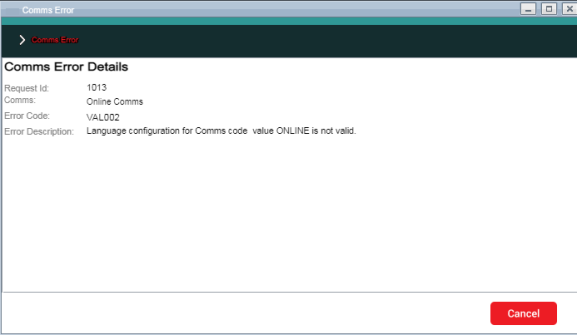
The Reasons Not Sent popup appears. It displays an explanation why the comms was not sent.
Explanation of pop-up fields
Field
Description
Request ID
The ID of the request that raised the comms.
Comms Code
The brief descriptive name of the comms, for example, Subscriber creation, Bill notification.
Reason Code
The alphanumeric code for the reason that the comms was not sent.
Description
A brief text description of the reason the comms was not sent.
Explanation
A more detailed explanation of the reason why the comms was not sent.
:
View Comms Error Details
The Error Details functionality allows you to view the reasons for a comms error. You can access this functionality for a comms with a request status of Error.
-
Access the Comms Error Details popup as follows:
Either
- Access the Comms lower panel for a Subscription , Account or Agreement.
Or
- In the list of comms, right-click the comms with the request status of Error and select Error Details in the shortcut menu.
-
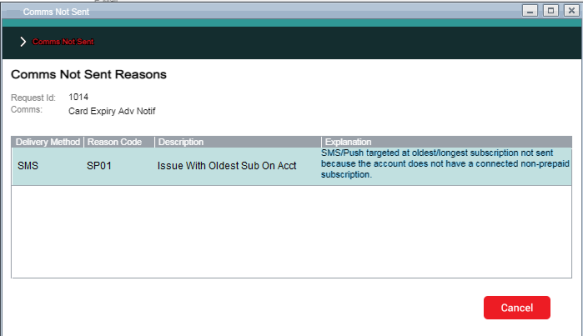
The Error Details pop-up appears. It displays the explanation why the comms was not sent.
Explanation of pop-up fields
Field
Description
Request ID
The ID of the request that raised the comms.
Comms
The brief descriptive name of the comms, for example, Subscriber creation, Bill notification.
Error Code
The alphanumeric code for the comms error.
Error Description
A brief text description of the comms error.
: